Notes & Visibility

Learn how to create, edit, and manage visibility of candidate notes.

Notes in GoJobee allow you to keep track of important information about candidates and share it with your team. With the new Visibility settings, you have full control over who sees your notes.

Notes & Visibility
1

Adding a Note

To add a note, navigate to a Candidate's profile and locate the Notes section.

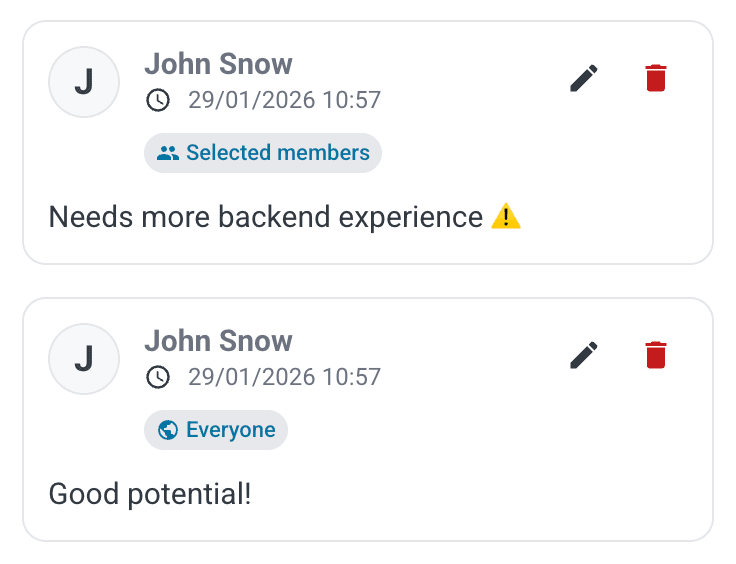
1. Rich Text Editor: You can format your note using Bold, *Italic*, or _Underline_. You can also create bulleted or numbered lists.

2. Mentions: Use the `@` button or type `@` to mention a team member. They will be notified about the note.

3. Emojis: Use the `🙂` button to insert emojis.
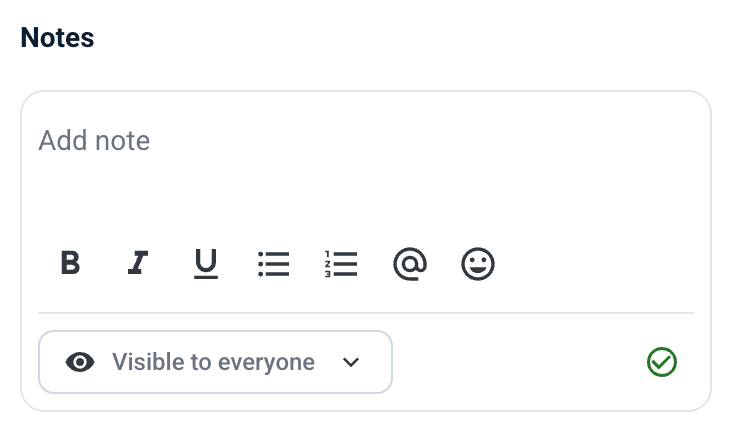
Adding a Note
2

Visibility Settings

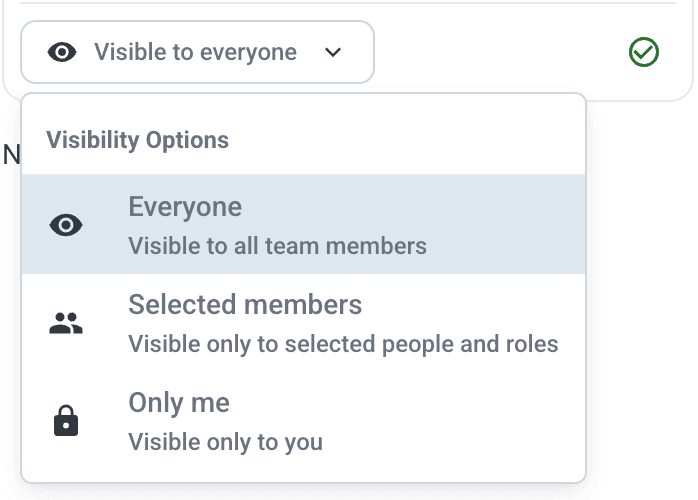
Before saving a note, you can decide who can see it using the visibility selector at the bottom of the editor.

  • Everyone: The note is visible to all team members with access to this candidate. (Default)
  • Only Me: The note is private and visible only to you. Useful for personal reminders or sensitive drafts.
  • Selected Members: The note is visible only to specific users or roles (e.g., "Recruiters").
Visibility Settings

Hover over the Selected members label on an existing note to see exactly who has access.

3

Selecting Members

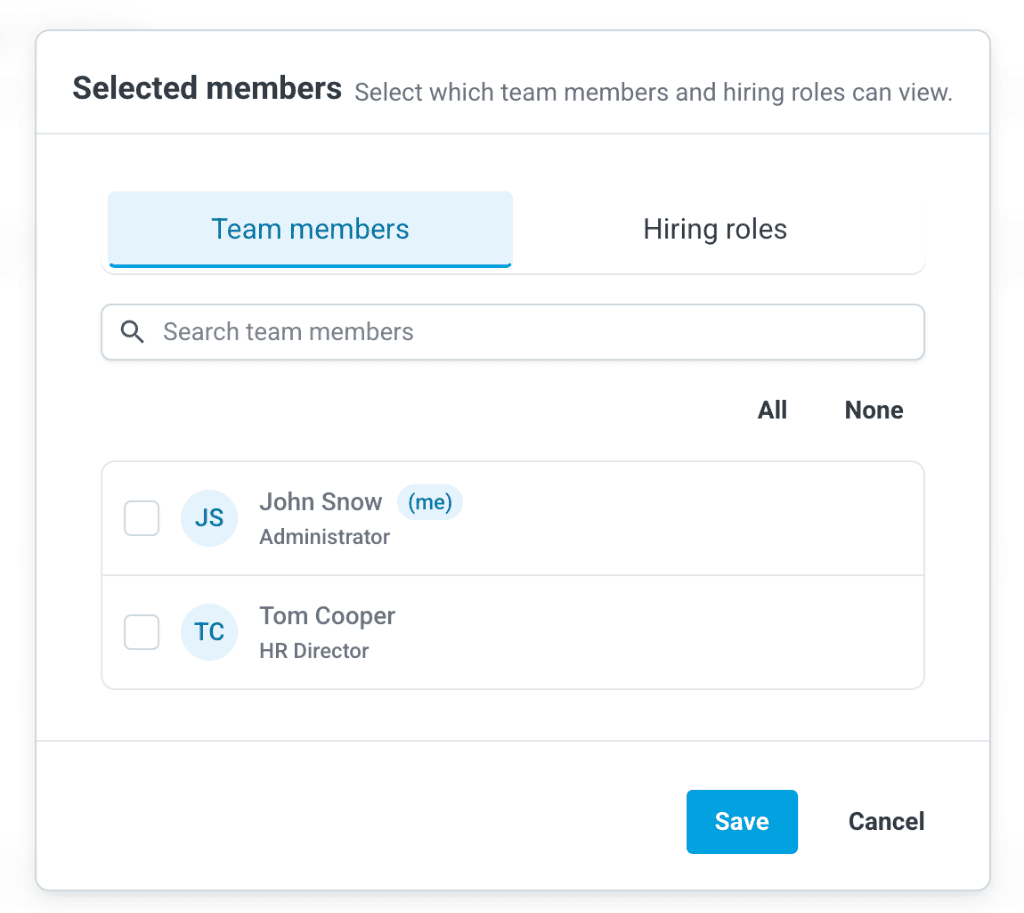
When you choose Selected Members, a modal will appear where you can search for and select specific team members or entire hiring roles.

Selecting Members
4

Editing Notes

You can edit any note that you created.

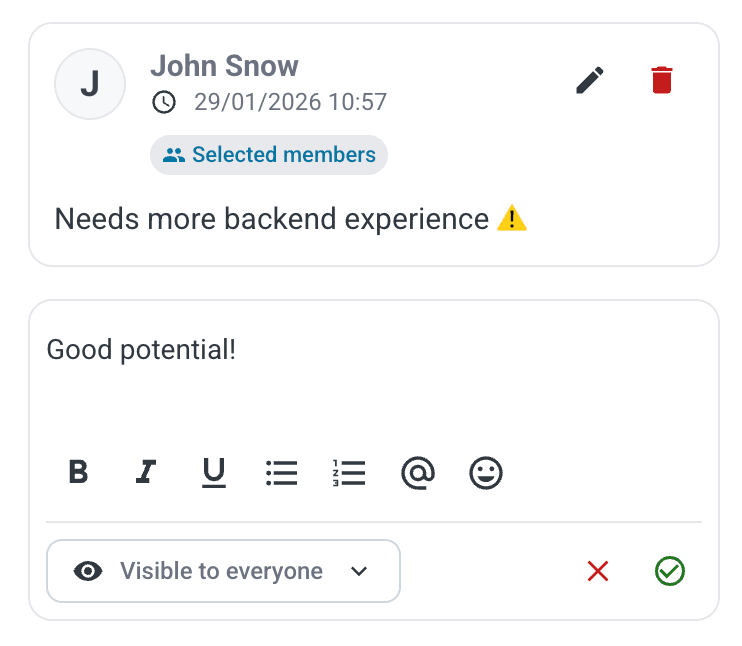
1. Click the Pencil icon (✏️) on the note card.

2. The note card will transform into the editor.

3. Make your changes and click the Checkmark (✅) to save.

Editing Notes

You cannot edit notes created by other users.

Back to Candidates